
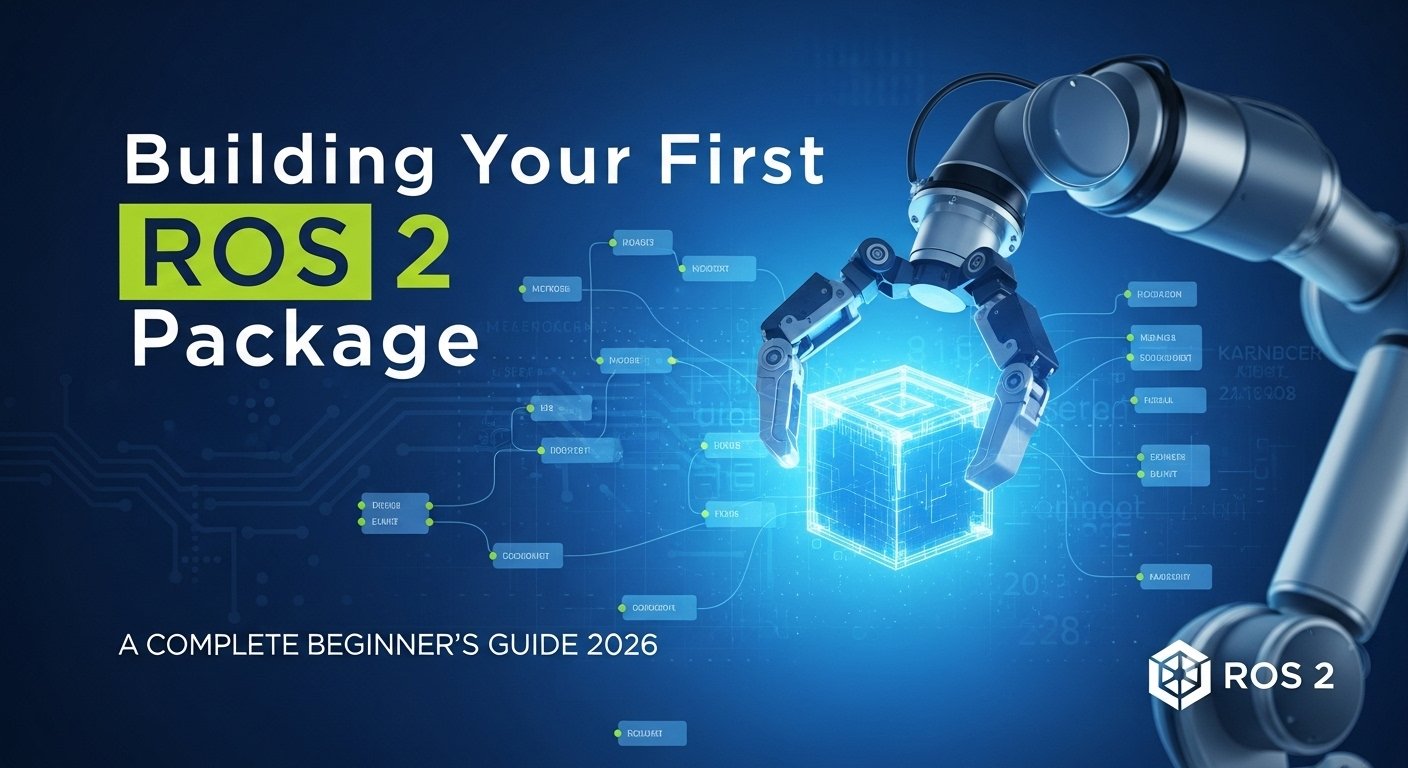
You installed ROS 2 Humble. You ran the talker/listener demo. Now what? It’s time to build your first ROS package—the fundamental unit of ROS development.
A ROS package is a collection of related code, configuration files, and launch instructions that perform a specific robotics function. Every robot application, sensor driver, and algorithm in ROS lives within a package. By the end of this guide, you’ll have created a complete robot controller package that publishes velocity commands, subscribes to sensor data, and responds to service requests.
Prerequisites: This guide assumes you have ROS 2 Humble installed and your environment is configured. If you haven’t installed ROS yet, follow our ROS Installation Guide first.
What Is a ROS Package?
A ROS 2 package is a directory containing:
- Source Code: Python or C++ nodes that perform computations
- Message Definitions: Custom data types for topics and services
- Configuration Files: Parameters, launch settings, and metadata
- Launch Files: Instructions to start multiple nodes together
- Package Manifest: Metadata about dependencies and package info
Packages are the building blocks of ROS applications. You can have one package per sensor, one per algorithm, or one massive package for your entire robot—it’s entirely up to you and your project’s needs.
What You’ll Build in This Guide
By the end of this tutorial, you’ll create a robot_controller package with:
- velocity_publisher node: Publishes movement commands to the robot
- odom_subscriber node: Listens to position updates from sensors
- Custom Twist.msg: Custom message for velocity commands
- set_mode service: Allows changing robot operation modes
- robot_controller.launch.py: Launch file to start everything together
Project Goal: Create a robot controller that moves a simulated robot in a square pattern, monitors its position, and can change modes (idle, moving, emergency stop) via service calls.
Step 1: Create Your Development Workspace
Before creating packages, set up your development workspace. We’ll use the standard ROS 2 workspace structure.
- Create the Workspace Directory:
mkdir -p ~/ros2_ws/src cd ~/ros2_ws - Verify the Structure:
ls -la ~/ros2_ws # Should show: src/ (empty directory) - Source ROS 2:
source /opt/ros/humble/setup.bash - Verify colcon is Available:
colcon --version
# Should output: colcon 0.x.x or higher
Workspace Tip: Your workspace is initially empty—packages live in the src/ folder. The build system (colcon) looks there for packages to compile.
Step 2: Create Your First ROS 2 Package
Now let’s create the robot_controller package using the colcon create command.
- Navigate to the Source Directory:
cd ~/ros2_ws/src - Create the Package:
ros2 pkg create --build-type ament_python robot_controller --dependencies rclpy std_msgs geometry_msgs - Understand the Command:
--build-type ament_python: Python package (use ament_cmake for C++)robot_controller: Package name--dependencies: Packages this package needs
- Verify Package Creation:
ls -la ~/ros2_ws/src/robot_controller/
# Should show: robot_controller/, package.xml, setup.py, setup.cfg, resource/
Package Structure Explained
| File/Folder | Description |
|---|---|
| package.xml | Package metadata, dependencies, maintainer info |
| setup.py | Python package setup script, entry points for nodes |
| setup.cfg | Build system configuration (usually auto-generated) |
| resource/robot_controller/ | Marker file for colcon to recognize as a package |
| robot_controller/ | Your Python source code goes here |
Configure package.xml
Open and update your package.xml with proper metadata:
nano ~/ros2_ws/src/robot_controller/package.xmlUpdate these sections:
<?xml version="1.0"?>
<?xml-model href="http://download.ros.org/schema/package_format3.xsd" schematypens="http://www.w3.org/2001/XMLSchema"?>
<package format="3">
  <name>robot_controller</name>
  <version>0.1.0</version>
  <description>Robot controller package for velocity commands and mode management</description>

  <maintainer email="your.email@example.com">Your Name</maintainer>
  <license>Apache-2.0</license>

  <buildtool_depend>ament_python</buildtool_depend>

  <depend>rclpy</depend>
  <depend>std_msgs</depend>
  <depend>geometry_msgs</depend>

  <test_depend>pytest</test_depend>

  <export>
    <build_type>ament_python</build_type>
  </export>
</package>
Step 3: Create Your First ROS 2 Node
Nodes are executable programs that perform computations. Let’s create a simple velocity publisher node.
Create the velocity_publisher Node
- Create the Python File:
touch ~/ros2_ws/src/robot_controller/robot_controller/velocity_publisher.py chmod +x ~/ros2_ws/src/robot_controller/robot_controller/velocity_publisher.py - Write the Node Code:
nano ~/ros2_ws/src/robot_controller/robot_controller/velocity_publisher.py - Add This Code:
#!/usr/bin/env python3
"""
velocity_publisher.py
A simple ROS 2 node that publishes velocity commands.
"""

import rclpy
from rclpy.node import Node
from geometry_msgs.msg import Twist


class VelocityPublisher(Node):
    def __init__(self):
        super().__init__('velocity_publisher')

        # Create publisher for velocity commands
        self.publisher = self.create_publisher(
            Twist,
            '/cmd_vel',
            10
        )

        # Create timer to publish at regular intervals
        timer_period = 0.5  # seconds
        self.timer = self.create_timer(timer_period, self.timer_callback)

        # Initialize velocity values
        self.linear_x = 0.0
        self.angular_z = 0.0
        self.direction = 1

        self.get_logger().info('Velocity Publisher Node started')

    def timer_callback(self):
        msg = Twist()
        msg.linear.x = self.linear_x
        msg.angular.z = self.angular_z

        self.publisher.publish(msg)
        self.get_logger().info(f'Publishing: linear.x={msg.linear.x}, angular.z={msg.angular.z}')

        # Simulate varying velocity for demonstration
        self.linear_x += 0.1 * self.direction
        if self.linear_x > 2.0 or self.linear_x < -2.0:
            self.direction *= -1

    def set_velocity(self, linear, angular):
        self.linear_x = linear
        self.angular_z = angular


def main(args=None):
    rclpy.init(args=args)
    node = VelocityPublisher()

    try:
        rclpy.spin(node)
    except KeyboardInterrupt:
        node.get_logger().info('Shutting down velocity publisher')
    finally:
        node.destroy_node()
        rclpy.shutdown()


if __name__ == '__main__':
    main()
Understanding the Node Structure
| Component | Code Line | Purpose |
|---|---|---|
| Import rclpy | from rclpy.node import Node | ROS 2 Python client library |
| Import message type | from geometry_msgs.msg import Twist | Velocity message definition |
| Node class | class VelocityPublisher(Node) | Blueprint for your node |
| Publisher | create_publisher(Twist, '/cmd_vel', 10) | Sends messages to topic |
| Timer | create_timer(0.5, callback) | Executes callback at interval |
| Callback | def timer_callback(self) | Code that runs periodically |
| rclpy.init/shutdown | Lifecycle management | Initialize and cleanup ROS |
Node Best Practices: Use descriptive node names, initialize all variables in __init__, handle exceptions properly, and always log important events with self.get_logger().info().
Step 4: Create a Subscriber Node
Subscribers listen to topics and process incoming messages. Let’s create an odometry subscriber node.
- Create the Subscriber File:
touch ~/ros2_ws/src/robot_controller/robot_controller/odom_subscriber.py chmod +x ~/ros2_ws/src/robot_controller/robot_controller/odom_subscriber.py - Write the Subscriber Code:
#!/usr/bin/env python3
"""
odom_subscriber.py
A ROS 2 node that subscribes to odometry messages.
"""

import rclpy
from rclpy.node import Node
from nav_msgs.msg import Odometry


class OdomSubscriber(Node):
    def __init__(self):
        super().__init__('odom_subscriber')

        # Create subscriber to odometry topic
        self.subscription = self.create_subscription(
            Odometry,
            '/odom',
            self.odom_callback,
            10
        )

        # Counter for received messages
        self.msg_count = 0

        self.get_logger().info('Odometry Subscriber Node started')

    def odom_callback(self, msg):
        self.msg_count += 1

        # Extract position
        pos = msg.pose.pose.position
        ori = msg.pose.pose.orientation

        # Log every 10th message to avoid spam
        if self.msg_count % 10 == 0:
            self.get_logger().info(
                f'Position: x={pos.x:.2f}, y={pos.y:.2f}, z={pos.z:.2f}'
            )
            self.get_logger().info(
                f'Messages received: {self.msg_count}'
            )

    def get_total_messages(self):
        return self.msg_count


def main(args=None):
    rclpy.init(args=args)
    node = OdomSubscriber()

    try:
        rclpy.spin(node)
    except KeyboardInterrupt:
        node.get_logger().info('Shutting down odometry subscriber')
    finally:
        node.destroy_node()
        rclpy.shutdown()


if __name__ == '__main__':
    main()
Key Differences: Publisher vs Subscriber
| Aspect | Publisher | Subscriber |
|---|---|---|
| Creates | create_publisher() | create_subscription() |
| Requires | Message type, topic name, queue size | Message type, topic name, callback, queue size |
| Sends | publisher.publish(msg) | No explicit send (receives only) |
| Callback | Timer-based (you define interval) | Event-based (when message arrives) |
Step 5: Create Custom Message Types
While ROS provides many standard message types, you’ll often need custom messages for your specific applications.
Create the Message Directory
- Create the msg Directory:
mkdir -p ~/ros2_ws/src/robot_controller/msg - Create the Custom Message File:
nano ~/ros2_ws/src/robot_controller/msg/RobotStatus.msg - Define the Message:
# RobotStatus.msg # Custom message for robot status reporting string robot_name uint8 mode # 0=IDLE, 1=MOVING, 2=ERROR, 3=EMERGENCY_STOP uint8 MODE_IDLE = 0 uint8 MODE_MOVING = 1 uint8 MODE_ERROR = 2 uint8 MODE_EMERGENCY_STOP = 3 float32 battery_level float32 cpu_temperature bool is_connected - Update package.xml:
nano ~/ros2_ws/src/robot_controller/package.xmlAdd this line in the depend section:
<buildtool_depend>rosidl_default_generators</buildtool_depend> <exec_depend>rosidl_default_runtime</exec_depend> <member_of_group>rosidl_interface_packages</member_of_group> - Update setup.py:
nano ~/ros2_ws/src/robot_controller/setup.pyAdd the message generation:
import os
from glob import glob
from setuptools import setup

package_name = 'robot_controller'

setup(
    name=package_name,
    version='0.1.0',
    packages=[package_name],
    data_files=[
        ('share/ament_index/resource_index/packages',
            ['resource/' + package_name]),
        ('share/' + package_name, ['package.xml']),
        # Include message files
        os.path.join('msg', '*.msg'),
    ],
    # ... rest of setup.py
)
Message Type Reference
| Type | Example | Description |
|---|---|---|
| bool | bool is_active | True/false value |
| int8/uint8 | uint8 age | 8-bit integers (-128 to 127 / 0 to 255) |
| int16/uint16 | int16 distance | 16-bit integers |
| int32/uint32 | int32 count | 32-bit integers |
| float32/float64 | float64 position | Floating point numbers |
| string | string name | Text string |
| time | time timestamp | ROS time (secs, nsecs) |
| duration | duration timeout | ROS duration (secs, nsecs) |
| Arrays | float64[] positions | Variable-length arrays |
| Fixed Arrays | float64[3] vector | Fixed-length arrays |
Constants: Define constants in your message by adding = value after the field name. These are immutable values available to all code using the message.
Step 7: Create Launch Files
Launch files start multiple nodes with specific configurations. They’re essential for complex robot applications.
- Create the Launch Directory:
mkdir -p ~/ros2_ws/src/robot_controller/launch - Create the Launch File:
nano ~/ros2_ws/src/robot_controller/launch/robot_controller.launch.py - Write the Launch File:
"""robot_controller.launch.py Launch file for the robot controller package. """ from launch import LaunchDescription from launch_ros.actions import Node from launch.actions import DeclareLaunchArgument from launch.substitutions import LaunchConfiguration def generate_launch_description(): # Launch arguments use_sim_time = DeclareLaunchArgument( 'use_sim_time', default_value='false', description='Use simulation clock' ) # Velocity Publisher Node velocity_publisher_node = Node( package='robot_controller', executable='velocity_publisher.py', name='velocity_publisher', output='screen', parameters=[{ 'use_sim_time': LaunchConfiguration('use_sim_time') }] ) # Odometry Subscriber Node odom_subscriber_node = Node( package='robot_controller', executable='odom_subscriber.py', name='odom_subscriber', output='screen', parameters=[{ 'use_sim_time': LaunchConfiguration('use_sim_time') }] ) # Mode Service Node mode_service_node = Node( package='robot_controller', executable='mode_service.py', name='mode_service', output='screen', parameters=[{ 'use_sim_time': LaunchConfiguration('use_sim_time') }] ) # Create and return launch description return LaunchDescription([ use_sim_time, velocity_publisher_node, odom_subscriber_node, mode_service_node, ]) - Update setup.py to Include Launch Files:
nano ~/ros2_ws/src/robot_controller/setup.pyUpdate the data_files section:
data_files=[
    ('share/ament_index/resource_index/packages',
        ['resource/' + package_name]),
    ('share/' + package_name, ['package.xml']),
    os.path.join('msg', '*.msg'),
    os.path.join('srv', '*.srv'),
    # Include launch files
    (os.path.join('share', package_name, 'launch'),
        glob(os.path.join('launch', '*.launch.py'))),
],
Also add glob import:
from glob import glob
Launch File Benefits: Launch files centralize node configuration, enable parameter passing, support conditional launching, and make your system reproducible with a single command.
Step 8: Configure Node Entry Points
Now configure setup.py to register your nodes as executables.
- Update setup.py with Entry Points:
nano ~/ros2_ws/src/robot_controller/setup.py - Add Entry Points Section:
setup(
    name=package_name,
    version='0.1.0',
    packages=[package_name],
    data_files=[
        ('share/ament_index/resource_index/packages',
            ['resource/' + package_name]),
        ('share/' + package_name, ['package.xml']),
        os.path.join('msg', '*.msg'),
        os.path.join('srv', '*.srv'),
        (os.path.join('share', package_name, 'launch'),
            glob(os.path.join('launch', '*.launch.py'))),
    ],
    install_requires=['setuptools'],
    zip_safe=True,
    maintainer='Your Name',
    maintainer_email='your.email@example.com',
    description='Robot controller package for velocity commands and mode management',
    license='Apache-2.0',
    tests_require=['pytest'],
    entry_points={
        'console_scripts': [
            'velocity_publisher = robot_controller.velocity_publisher:main',
            'odom_subscriber = robot_controller.odom_subscriber:main',
            'mode_service = robot_controller.mode_service:main',
            'mode_client = robot_controller.mode_client:main',
        ],
    },
)
Step 9: Build Your Package
Now let’s compile your package and make it ready to run.
- Navigate to Workspace Root:
cd ~/ros2_ws - Install Dependencies:
rosdep install --from-paths src --ignore-src -r -yThis installs any system packages your code depends on.
- Build the Package:
colcon build --symlink-installThe
--symlink-installflag creates symbolic links to your source files, so code changes take effect without rebuilding (most of the time). - Build Output:
# You should see output like: Starting >>> robot_controller Finished <<< robot_controller Summary: 1 package finished [X.XXs] - Verify Build Artifacts:
ls -la ~/ros2_ws/install/robot_controller/lib/robot_controller/
# Should list your executable Python scripts
Build Issues? If the build fails, check the error messages carefully. Common issues include missing dependencies in package.xml, syntax errors in Python files, or missing message/service generation setup.
Step 10: Run Your Nodes
Let's verify everything works by running the nodes.
Source the Workspace
- Source the Workspace Setup:
source ~/ros2_ws/install/setup.bash - Add to Your .bashrc for Convenience:
echo 'source ~/ros2_ws/install/setup.bash' >> ~/.bashrc
source ~/.bashrc
Run Individual Nodes
- Run the Velocity Publisher:
ros2 run robot_controller velocity_publisherYou should see:
[INFO] [velocity_publisher]: Velocity Publisher Node started
[INFO] [velocity_publisher]: Publishing: linear.x=0.0, angular.z=0.0
[INFO] [velocity_publisher]: Publishing: linear.x=0.1, angular.z=0.0
...
Press Ctrl+C to stop.
- Run the Odometry Subscriber:
ros2 run robot_controller odom_subscriberThis will wait for odometry data on /odom topic.
- Run the Mode Service:
ros2 run robot_controller mode_service
Launch Everything with One Command
- Use the Launch File:
ros2 launch robot_controller robot_controller.launch.pyAll nodes should start simultaneously.
Step 11: Verify Node Communication
Let's verify the nodes are communicating properly using ROS 2 command-line tools.
- List Active Nodes:
ros2 node list # Should show: # /velocity_publisher # /odom_subscriber # /mode_service - List Active Topics:
ros2 topic list # Should show: # /cmd_vel # /odom # /parameter_events # /rosout - List Active Services:
ros2 service list # Should show: # /set_mode # /set_mode/describe_parameters # /set_mode/get_parameter_types # ... - Echo Published Messages:
ros2 topic echo /cmd_velThis displays the Twist messages being published by velocity_publisher.
- Call the Service:
ros2 service call /set_mode robot_controller/srv/SetMode "{requested_mode: 1}"You should see:
requester: making request: robot_interface.srv.SetMode_Request(requested_mode=1)
response:
robot_interface.srv.SetMode_Response(success=True, message='Mode changed to MOVING', current_mode=1)
Congratulations! If all the above commands work, your ROS 2 package is fully functional. You've created nodes, topics, services, messages, and launch files—all the core components of ROS development.
Step 12: Add Unit Tests
Testing ensures your code works correctly and helps prevent regressions.
- Create Test Directory:
mkdir -p ~/ros2_ws/src/robot_controller/test - Create a Test File:
nano ~/ros2_ws/src/robot_controller/test/test_nodes.py - Write the Test:
"""Test file for robot_controller package.""" import pytest import rclpy from geometry_msgs.msg import Twist from robot_controller.mode_service import ModeService class TestVelocityPublisher: """Test cases for velocity publisher.""" def test_twist_message_creation(self): """Test that Twist message can be created.""" msg = Twist() msg.linear.x = 1.0 msg.angular.z = 0.5 assert msg.linear.x == 1.0 assert msg.angular.z == 0.5 def test_twist_message_bounds(self): """Test Twist message value constraints.""" msg = Twist() msg.linear.x = 5.0 # Max velocity msg.linear.y = 0.0 msg.linear.z = 0.0 msg.angular.x = 0.0 msg.angular.y = 0.0 msg.angular.z = 2.0 # Max angular velocity assert msg.linear.x <= 10.0 # Assuming max is 10 assert msg.angular.z <= 5.0 # Assuming max is 5 class TestModeService: """Test cases for mode service.""" def test_valid_mode(self): """Test that valid modes are accepted.""" valid_modes = [0, 1, 2, 3] for mode in valid_modes: assert mode in range(4) def test_mode_names(self): """Test that mode names are defined.""" mode_names = ['IDLE', 'MOVING', 'ERROR', 'EMERGENCY_STOP'] assert len(mode_names) == 4 assert mode_names[0] == 'IDLE' assert mode_names[3] == 'EMERGENCY_STOP' if __name__ == '__main__': pytest.main([__file__, '-v']) - Run the Tests:
cd ~/ros2_ws
colcon test --packages-select robot_controller
colcon test-result --verbose
Complete Package Structure
Here's what your final robot_controller package should look like:
| Path | Type | Description |
|---|---|---|
| package.xml | File | Package metadata and dependencies |
| setup.py | File | Python package setup with entry points |
| setup.cfg | File | Build configuration |
| resource/robot_controller/ | Dir | Package marker |
| robot_controller/ | Dir | Python source code |
| robot_controller/__init__.py | File | Package init |
| robot_controller/velocity_publisher.py | File | Velocity publisher node |
| robot_controller/odom_subscriber.py | File | Odometry subscriber node |
| robot_controller/mode_service.py | File | Mode service node |
| robot_controller/mode_client.py | File | Mode service client |
| msg/RobotStatus.msg | File | Custom message definition |
| srv/SetMode.srv | File | Service definition |
| launch/robot_controller.launch.py | File | Launch file |
| test/test_nodes.py | File | Unit tests |
Troubleshooting Common Issues
Issue 1: "ModuleNotFoundError: No module named 'robot_controller'"
- Cause: Workspace not sourced after building
- Solution:
source ~/ros2_ws/install/setup.bash
Issue 2: "Node has not been discovered"
- Cause: Nodes not running or not started yet
- Solution: Run the nodes first, then use tools like ros2 topic echo
Issue 3: "custom_msgs generator not found"
- Cause: Message generation dependencies missing
- Solution:
rosdep install --from-paths src --ignore-src -r -y
colcon build --cmake-clean-cache
Issue 4: "Permission denied" on Python files
- Cause: Executable permission not set
- Solution:
chmod +x ~/ros2_ws/src/robot_controller/robot_controller/*.py
Still Stuck? Try these resources:
Next Steps: Continue Learning
You've built your first ROS 2 package. Here's where to go next:
Expand Your Package
- Add Parameters: Use
declare_parameter()to make your nodes configurable - Add Actions: For long-running tasks with feedback, use ROS 2 Actions
- Add Logging: Use
self.get_logger().debug(),.warn(),.error()for different log levels - Add Lifecycle Nodes: For production systems, use managed lifecycle nodes
Official Resources
- Official ROS 2 Package Tutorial
- ROS 2 Concepts Documentation
- Message and Service Types
- Launch Files Documentation
Video Tutorials
- Articulated Robotics - Excellent ROS 2 tutorials
- The Construct Sim - Interactive ROS courses
- Eat Data - ROS 2 from scratch
Conclusion: You Built Your First ROS Package!
Congratulations! You've successfully created a complete ROS 2 package with:
- Multiple nodes that communicate via topics and services
- Custom message and service definitions
- A launch file to start everything together
- Unit tests to verify functionality
This package demonstrates the core concepts you'll use in every ROS project. The patterns you learned here—publishers, subscribers, services, launch files—are the building blocks of industrial robots, autonomous vehicles, drones, and research platforms.
Your Challenge: Modify the velocity_publisher to follow a specific pattern (square, circle, figure-8). Add a subscriber that monitors battery level and triggers emergency stop when low. Push your code to GitHub and share it with the community!
You've taken a crucial step in your robotics journey. From here, explore robot simulation in Gazebo, robot arm kinematics with MoveIt, or autonomous navigation with Navigation 2. The ROS ecosystem has virtually unlimited possibilities.
Keep building, keep experimenting, and remember: every advanced robotics engineer started exactly where you are now.
Related Guides: Continue your learning with Simulating Robots in Gazebo, Introduction to Robot Kinematics, Autonomous Navigation with ROS 2, and Computer Vision with ROS 2 and OpenCV.