
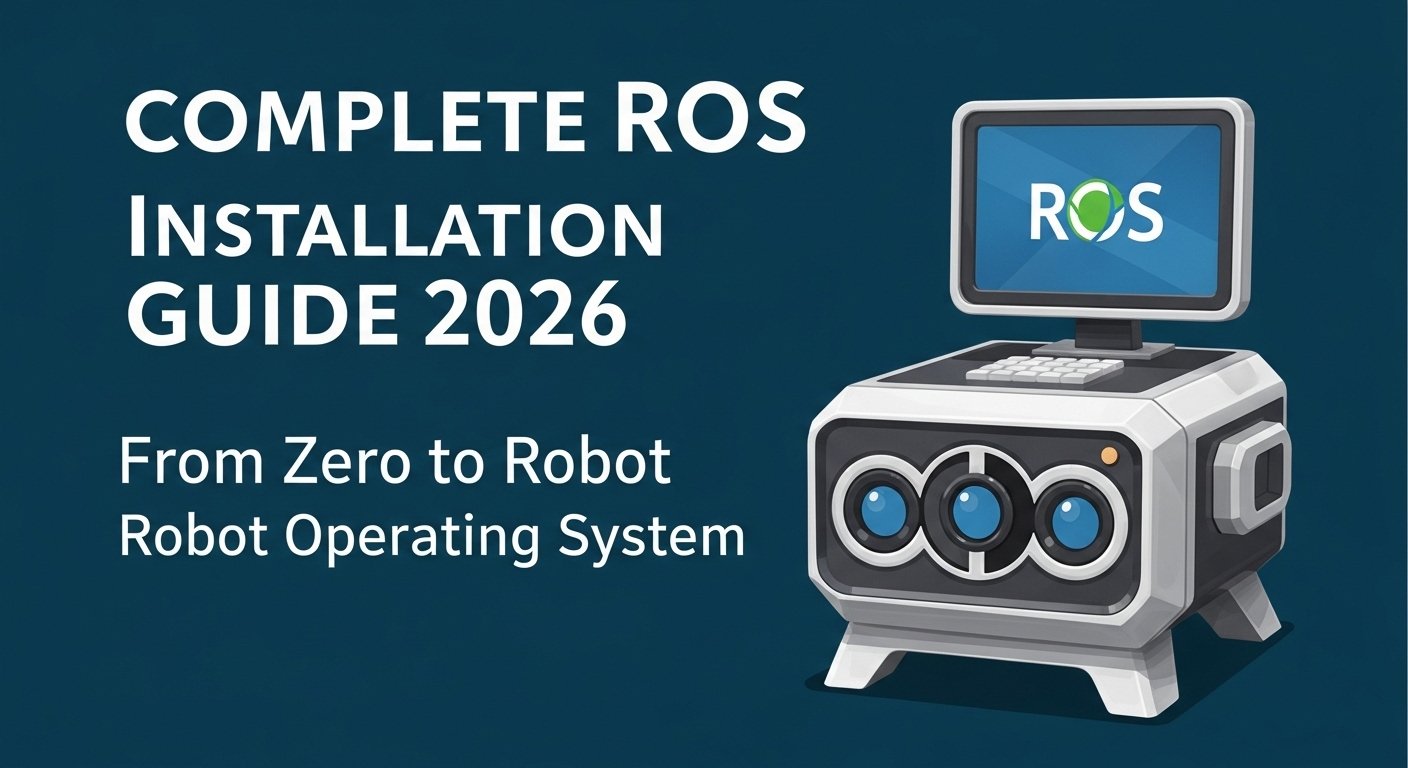
The Robot Operating System (ROS) is the backbone of modern robotics development. Whether you’re building a simple line-following robot or a complex autonomous vehicle, ROS provides the communication infrastructure, tools, and libraries that make development faster and more maintainable.
This guide walks you through installing ROS from scratch—no prior Linux experience required. We’ll cover both ROS 1 (Noetic) and ROS 2 (Humble), help you choose the right version for your project, and have you running your first ROS program within an hour.
Before You Start: Installing ROS is straightforward but requires attention to detail. This guide assumes you’re using a computer with at least 8GB RAM, 50GB free disk space, and a stable internet connection. The entire installation takes 30-60 minutes depending on your internet speed.
Understanding ROS: Noetic vs Humble
Before installing, you need to choose between ROS 1 and ROS 2. Here’s what you need to know:
| Feature | ROS Noetic (ROS 1) | ROS 2 Humble |
|---|---|---|
| Release Year | 2020 | 2022 |
| Ubuntu Support | Ubuntu 20.04 (Focal) | Ubuntu 22.04 (Jammy) |
| Python Support | Python 2.7 & 3.8+ | Python 3.10+ only |
| Real-Time Support | No (requires patches) | Yes (built-in) |
| Security | Basic | DDS security built-in |
| Learning Resources | Extensive | Growing rapidly |
| Industry Adoption | Legacy systems | New projects |
| Best For | Academia, learning, legacy robots | Production, new projects |
Recommendation: For beginners learning robotics in 2026, start with ROS 2 Humble. It has modern features, active development, and will be the standard for years to come. However, if your university/research lab uses ROS 1, learn both.
Which Should You Install?
- Install ROS 2 Humble if: Starting a new project, building production robots, learning modern practices, using Ubuntu 22.04
- Install ROS Noetic if: Taking a university course that requires it, working with existing ROS 1 robots, following older tutorials
- Install both if: Bridging between systems or working in mixed environments
Step 1: Install Ubuntu Linux
ROS runs natively on Ubuntu Linux. If you don’t have Ubuntu installed, you have two options:
Option A: Native Ubuntu Installation (Recommended)
What It Is: Installing Ubuntu directly on your computer, either as the only OS or dual-booting alongside Windows/macOS.
Why Choose Native:
- Best Performance: Full access to system resources, no virtualization overhead
- GPU Access: Direct NVIDIA CUDA support for ML/CV applications
- Most Stable: Tested configuration with fewer compatibility issues
Download Ubuntu:
- Ubuntu 22.04.5 LTS (Jammy) – Required for ROS 2 Humble
- Ubuntu 20.04.6 LTS (Focal) – Required for ROS Noetic
Installation Steps:
- Download Ubuntu ISO: Visit ubuntu.com/download/desktop and download the appropriate version (22.04 for ROS 2, 20.04 for ROS 1).
- Create Bootable USB: Use Balena Etcher or Rufus to flash the ISO onto a USB drive (minimum 8GB).
- Back Up Data: If dual-booting, back up important files before partitioning your drive.
- Boot from USB: Restart your computer and press the boot menu key (usually F12, F2, or Delete) to select the USB drive.
- Follow Installation Wizard: Choose “Install Ubuntu,” select your language, and choose installation type:
- Erase disk and install Ubuntu: Simplest option, deletes everything
- Something else: For manual partitioning (advanced)
- Create Your Account: Choose a username and password. Remember—this is your sudo password for installing software.
- Wait for Installation: Installation typically takes 15-30 minutes. Restart when prompted and remove the USB drive.
- Install Essential Updates: Open Terminal (Ctrl+Alt+T) and run:
sudo apt update && sudo apt upgrade -y
Option B: Virtual Machine (For Windows/macOS Users)
What It Is: Running Ubuntu inside a virtual machine using software like VirtualBox or VMware.
Why Choose Virtual Machine:
- No Reboot Required: Keep your current OS and run Ubuntu simultaneously
- Safe Experimentation: Mess up the VM? Delete and start fresh without affecting your main system
- Cross-Platform: Works on Windows, macOS, or Linux
Required Software:
- VirtualBox – Free, open-source (recommended for beginners)
- VMware Workstation Player – Free for personal use, better performance
Virtual Machine Setup:
- Download and Install VirtualBox: Get the latest version from virtualbox.org.
- Download Ubuntu ISO: From ubuntu.com (use 22.04 for ROS 2 Humble).
- Create New Virtual Machine:
- Click “New” in VirtualBox
- Name: “ROS2-Humble” (or “ROS-Noetic”)
- Type: “Linux”
- Version: “Ubuntu (64-bit)”
- Memory: At least 4GB (8GB recommended)
- Hard disk: 50GB minimum (80GB recommended)
- Mount Ubuntu ISO: Go to Settings > Storage > Empty > CD icon > Choose disk file. Select your Ubuntu ISO.
- Install Ubuntu: Start the VM and follow the Ubuntu installation wizard.
- Install VirtualBox Guest Additions: After Ubuntu is installed, go to Devices > Insert Guest Additions CD image. This enables better screen resolution and mouse integration.
Performance Note: Virtual machines share your host’s resources. For comfortable ROS development, allocate at least 4 CPU cores and 8GB RAM to the VM. You’ll also need ChatGPT or similar AI assistants to help troubleshoot—VM setups often have unique issues.
Step 2: Install ROS 2 Humble (Recommended)
Now that Ubuntu is ready, let’s install ROS 2 Humble.
Method A: Desktop Installation (Recommended for Beginners)
This includes ROS, RViz, Gazebo simulators, and 2D/3D perception libraries.
- Set Locale: Ensure your locale supports UTF-8:
locale # Check for UTF-8 sudo apt update && sudo apt install locales sudo locale-gen en_US en_US.UTF-8 sudo update-locale LC_ALL=en_US.UTF-8 LANG=en_US.UTF-8 export LANG=en_US.UTF-8 locale # Verify settings - Add ROS 2 Repository:
sudo apt install software-properties-common sudo add-apt-repository universe sudo apt update && sudo apt install curl -y sudo curl -sSL https://raw.githubusercontent.com/ros/rosdistro/master/ros.key -o /usr/share/keyrings/ros-archive-keyring.gpg echo "deb [arch=$(dpkg --print-architecture) signed-by=/usr/share/keyrings/ros-archive-keyring.gpg] http://packages.ros.org/ros2/ubuntu $(. /etc/os-release && echo $UBUNTU_CODENAME) main" | sudo tee /etc/apt/sources.list.d/ros2.list > /dev/null - Install ROS 2 Packages:
sudo apt update
sudo apt upgrade -y
sudo apt install ros-humble-desktop -y
This installs the full desktop version including RViz, Gazebo, and tutorials. Installation takes 15-30 minutes depending on your internet speed.
- Install Dependencies:
sudo apt install python3-pip pip install argcomplete - Install colcon (Build Tool):
sudo apt install python3-colcon-common-extensions sudo apt install python3-argparse - Install Additional Tools:
sudo apt install terminator  # Better terminal than default
sudo apt install git -y      # Version control
sudo apt install curl wget    # Download tools
Method B: ROS 2 via Docker (Alternative)
What It Is: Using Docker containers to run ROS 2 without modifying your host system.
Why Use Docker:
- No System Modification: Doesn’t interfere with your existing setup
- Reproducible Environments: Same environment everywhere
- Easy Cleanup: Delete container and start fresh
Docker Installation:
- Install Docker:
sudo apt update sudo apt install docker.io docker-compose -y sudo usermod -aG docker $USER # Log out and back in for group changes to take effect - Pull ROS 2 Humble Docker Image:
docker pull osrf/ros:humble-desktop - Run ROS 2 Container:
xhost +local:docker  # Allow GUI access
docker run -it \
    --env="DISPLAY" \
    --env="QT_X11_NO_MITSHM=1" \
    --volume="/tmp/.X11-unix:/tmp/.X11-unix:rw" \
    --device="/dev/dri:/dev/dri" \
    osrf/ros:humble-desktop
Docker Limitation: Running GUI applications (RViz, Gazebo) in Docker requires additional X11 configuration and may have performance issues. For beginners, we recommend native installation over Docker.
Step 3: Install ROS 1 Noetic (Alternative)
If you need ROS 1 for university courses or legacy projects, here’s how to install Noetic on Ubuntu 20.04.
- Configure Ubuntu Repositories:
sudo sh -c 'echo "deb http://packages.ros.org/ros/ubuntu $(. /etc/os-release && echo $UBUNTU_CODENAME) main" > /etc/apt/sources.list.d/ros-latest.list' sudo apt install curl curl -s https://raw.githubusercontent.com/ros/rosdistro/master/ros.key | sudo apt-key add - - Install ROS Noetic:
sudo apt update
sudo apt install ros-noetic-desktop-full -y
This includes the full desktop version with all tutorials, simulators, and perception libraries.
- Install Dependencies:
sudo apt install python3-rosdep python3-rosinstall python3-rosinstall-generator build-essential -y - Initialize rosdep:
sudo rosdep init
rosdep update
Step 4: Configure Your ROS Environment
After installation, you need to set up your environment variables. ROS uses several environment variables to find packages and configure the system.
Understanding ROS Environment Variables
- ROS_DISTRO: Which ROS distribution you’re using (humble or noetic)
- ROS_PACKAGE_PATH: Where ROS looks for packages
- AMENT_PREFIX_PATH: ROS 2 package installation paths
- COLCON_PREFIX_PATH: Workspace package locations
Automatic Environment Setup
The easiest way to configure your environment is to add sourcing commands to your shell configuration file.
- Open Your Shell Configuration:
nano ~/.bashrcThis opens the bash configuration file in the Nano text editor.
- Add ROS 2 Humble Source Command (add at the end):
# ROS 2 Humble Setup source /opt/ros/humble/setup.bash - Add ROS 1 Noetic Source Command (alternative):
# ROS 1 Noetic Setup source /opt/ros/noetic/setup.bash - Save and Exit:
- Press Ctrl+O to save
- Press Enter to confirm
- Press Ctrl+X to exit
- Apply Changes:
source ~/.bashrcOr close and reopen your terminal.
- Verify Installation:
echo $ROS_DISTRO
# Should output: humble (or noetic)
Pro Tip: Add an alias to easily switch between ROS versions if you have both installed:
# Add to ~/.bashrc
alias source_humble='source /opt/ros/humble/setup.bash'
alias source_noetic='source /opt/ros/noetic/setup.bash'
Step 5: Create Your First ROS Workspace
A ROS workspace is where you develop your own packages. The standard structure uses src, build, install, and log directories.
Understanding the ROS 2 Workspace Structure
- src/ (Source): Where your source code and packages live
- build/ (Build): Where build artifacts are stored (automatically created)
- install/ (Install): Where installed packages are placed (automatically created)
- log/ (Log): Build and runtime logs (automatically created)
Creating Your Workspace
- Create Workspace Directory:
mkdir -p ~/ros2_ws/src
cd ~/ros2_ws
Replace “ros2_ws” with “ros_ws” if using ROS 1.
- Download Example Packages:
cd ~/ros2_ws/src git clone https://github.com/ros/ros_tutorials.git -b humble-devel git clone https://github.com/ros/visualization_tutorials.git -b humble-devel git clone https://github.com/ros/robotviz_tutorials.git -b humble-devel - Install Dependencies:
cd ~/ros2_ws
rosdep install --from-paths src --ignore-src -r -y
This installs any system dependencies required by the packages.
- Build the Workspace:
cd ~/ros2_ws
colcon build --symlink-install
The
--symlink-installflag creates symbolic links instead of copying files, so changes to source code take effect immediately without rebuilding. - Source the Workspace:
source ~/ros2_ws/install/setup.bash - Add to Your Bash Configuration:
echo 'source ~/ros2_ws/install/setup.bash' >> ~/.bashrc
Build Time: The first build can take 10-30 minutes depending on your computer speed and the packages involved. Subsequent builds are faster because only changed files are recompiled.
Step 6: Run Your First ROS Program
Let’s verify everything works by running the ROS 2 tutorials.
Running the Talker and Listener Demo
ROS uses a publish/subscribe communication system. The “talker” publishes messages, and the “listener” receives them.
- Open Terminal 1 – Start the Listener:
ros2 run demo_nodes_py listenerYou should see the listener waiting for messages.
- Open Terminal 2 – Start the Talker:
ros2 run demo_nodes_py talkerYou should see the talker publishing messages and the listener receiving them.
- Verify Communication: If you see messages appearing in the listener terminal, your ROS installation is working correctly!
Running RViz (3D Visualization)
RViz is ROS’s primary visualization tool for robot models, sensor data, and navigation.
- Start RViz:
rviz2 - Add a Display:
- Click “Add” in the left panel
- Select “RobotModel”
- In the “Description Source” field, select “Topic”
- Click “/robot_description”
- You Should See: A robot model (or error if no robot is running). This confirms your visualization tools are working.
Running Gazebo (Robot Simulation)
Gazebo is a powerful physics simulator for testing robots before deploying to real hardware.
- Launch Gazebo with a Sample Robot:
gazebo - Insert a Robot: Click “Insert” tab and add any model from the list.
- Verify Physics: Drop objects to verify gravity and physics are working.
Congratulations! If you can run the talker/listener demo, RViz, and Gazebo, your ROS installation is complete and working. You’re ready to start building robots!
Troubleshooting Common Issues
Installation issues are common. Here are solutions to the most frequent problems:
Issue 1: “Command ‘ros2’ not found”
- Cause: ROS environment not sourced
- Solution: Run
source /opt/ros/humble/setup.bashin your terminal - Permanent Fix: Add the source command to ~/.bashrc (see Step 4)
Issue 2: “Unable to locate package ros-humble-desktop”
- Cause: Repository not properly configured
- Solution:
sudo apt update sudo apt install curl sudo curl -sSL https://raw.githubusercontent.com/ros/rosdistro/master/ros.key -o /usr/share/keyrings/ros-archive-keyring.gpg echo "deb [arch=$(dpkg --print-architecture) signed-by=/usr/share/keyrings/ros-archive-keyring.gpg] http://packages.ros.org/ros2/ubuntu $(. /etc/os-release && echo $UBUNTU_CODENAME) main" | sudo tee /etc/apt/sources.list.d/ros2.list sudo apt update - Verify: Run
apt search ros-humbleto see available packages
Issue 3: Gazebo Freezes or Crashes
- Cause: Graphics driver issues or insufficient GPU support
- Solutions:
- Update graphics drivers:
sudo ubuntu-drivers autoinstall - Use software rendering:
LIBGL_ALWAYS_SOFTWARE=1 gazebo - Try different Gazebo version:
gazebo --version
- Update graphics drivers:
Issue 4: Permission Denied Errors
- Cause: USB device access or serial port permissions
- Solution: Add user to dialout group:
sudo usermod -aG dialout $USER
# Log out and back in for changes to take effect
Issue 5: ROS Distribution Version Mismatch
- Cause: Attempting to install wrong ROS version for Ubuntu version
- Solution:
- ROS 2 Humble requires Ubuntu 22.04
- ROS 1 Noetic requires Ubuntu 20.04
- Check your Ubuntu version:
lsb_release -a - If wrong version, you need to reinstall Ubuntu with the correct version
Issue 6: Build Failures with colcon
- Cause: Missing dependencies or incompatible packages
- Solution:
# Clean and rebuild cd ~/ros2_ws rm -rf build install log rosdep install --from-paths src --ignore-src -r -y colcon build --symlink-install - Check for Errors: Read the error messages carefully—they usually specify which dependency is missing
Need More Help? If you’re stuck, try these resources:
Essential ROS 2 Packages to Install Next
Once your base installation is working, install these essential packages to expand your capabilities:
| Package | Command | Purpose |
|---|---|---|
| MoveIt 2 | sudo apt install ros-humble-moveit* | Robot arm motion planning |
| Navigation 2 | sudo apt install ros-humble-navigation2* | Mobile robot navigation |
| SLAM Toolbox | sudo apt install ros-humble-slam-toolbox | Simultaneous localization and mapping |
| Cartographer | sudo apt install ros-humble-cartographer* | LiDAR SLAM for mapping |
| Realsense ROS | sudo apt install ros-humble-realsense2-* | Intel RealSense camera support |
| OpenCV | sudo apt install ros-humble-cv-bridge | Computer vision bridge |
| PCL | sudo apt install ros-humble-pcl-* | Point cloud processing |
| TurtleBot 3 | sudo apt install ros-humble-turtlebot3-* | Education robot with simulations |
Quick Install All: Install multiple packages at once:
Setting Up VS Code for ROS Development
A good code editor makes ROS development much easier. Visual Studio Code with ROS extensions provides syntax highlighting, IntelliSense, and integrated terminal.
- Install VS Code:
sudo snap install code --classic # OR download from https://code.visualstudio.com - Install ROS Extensions:
- Open VS Code
- Press Ctrl+Shift+X to open Extensions
- Search and install:
- “ROS” by Microsoft
- “Python” by Microsoft
- “C/C++” by Microsoft
- Configure for ROS 2:
- Open File > Preferences > Settings
- Search for “ROS” settings
- Set “ROS: Distro” to “humble”
- Open Your Workspace:
code ~/ros2_ws - Configure Build Task:
- Press Ctrl+Shift+P
- Search “Tasks: Configure Default Build Task”
- Select “Create tasks.json file”
- Choose “ROS Build”
Next Steps: Your ROS Learning Path
Your ROS installation is complete. Here’s how to continue learning:
Official Tutorials
- ROS 2 Humble Official Tutorials – Comprehensive beginner guide from the official documentation
- ROS 1 Noetic Official Tutorials – For ROS 1 learners
- Navigation 2 Documentation – Learn mobile robot navigation
- MoveIt Documentation – Master robot arm manipulation
Online Courses
- The Construct Sim – Web-based ROS learning with simulated robots
- Robot Ignite Academy – Structured ROS 2 courses
- Udemy ROS Courses – Various ROS video courses
- Coursera Robotics Specialization – University-level robotics courses
YouTube Channels
- Articulated Robotics – Excellent ROS 2 tutorials for beginners
- RoboCoach – Practical robotics projects
- Eat Data – ROS 2 from scratch tutorials
- F1/10 Autonomous Racing – Advanced ROS applications
Books
- ROS Robotics Projects by Lentin Joseph – Hands-on project-based learning
- ROS 2 for Beginners by Lentin Joseph – Focused on ROS 2 fundamentals
- Programming Robots with ROS by Quigley et al. – Classic ROS 1 reference
- ROS in Action by Tully Foote – Comprehensive ROS guide
Conclusion: Your ROS Journey Begins Now
You’ve successfully installed ROS 2 Humble or ROS 1 Noetic and verified your installation with working examples. The robot operating system is now ready on your machine, opening the door to robotics development.
Your Next Milestone: Complete the official ROS 2 tutorials at docs.ros.org/en/humble/Tutorials.html. These interactive tutorials will teach you nodes, topics, services, actions, and launch files—the building blocks of every ROS project.
From here, your learning path depends on your goals:
- Interested in robot arms? Learn MoveIt and forward/inverse kinematics
- Interested in autonomous vehicles? Master Navigation 2 and SLAM
- Interested in perception? Deep dive into computer vision with OpenCV and depth cameras
- Interested in simulation? Explore Gazebo worlds and physics modeling
The ROS community is one of the most helpful in robotics. When you’re stuck, don’t hesitate to ask questions on ROS Answers, ROS Discourse, or Reddit’s r/ROS. Thousands of developers have faced the same issues and are happy to help.
Your installation is complete. Your workspace is ready. Your first programs have run successfully. Now it’s time to build something amazing with ROS.
Stay Updated: ROS releases new distributions every 2 years. Subscribe to the ROS Release Announcements forum to stay informed about updates, security patches, and new features.
Related Guides: Check out our other robotics tutorials: Building Your First ROS Package, Introduction to Robot Kinematics, Simulating Robots in Gazebo, and ROS 2 vs ROS 1: Which Should You Learn?